
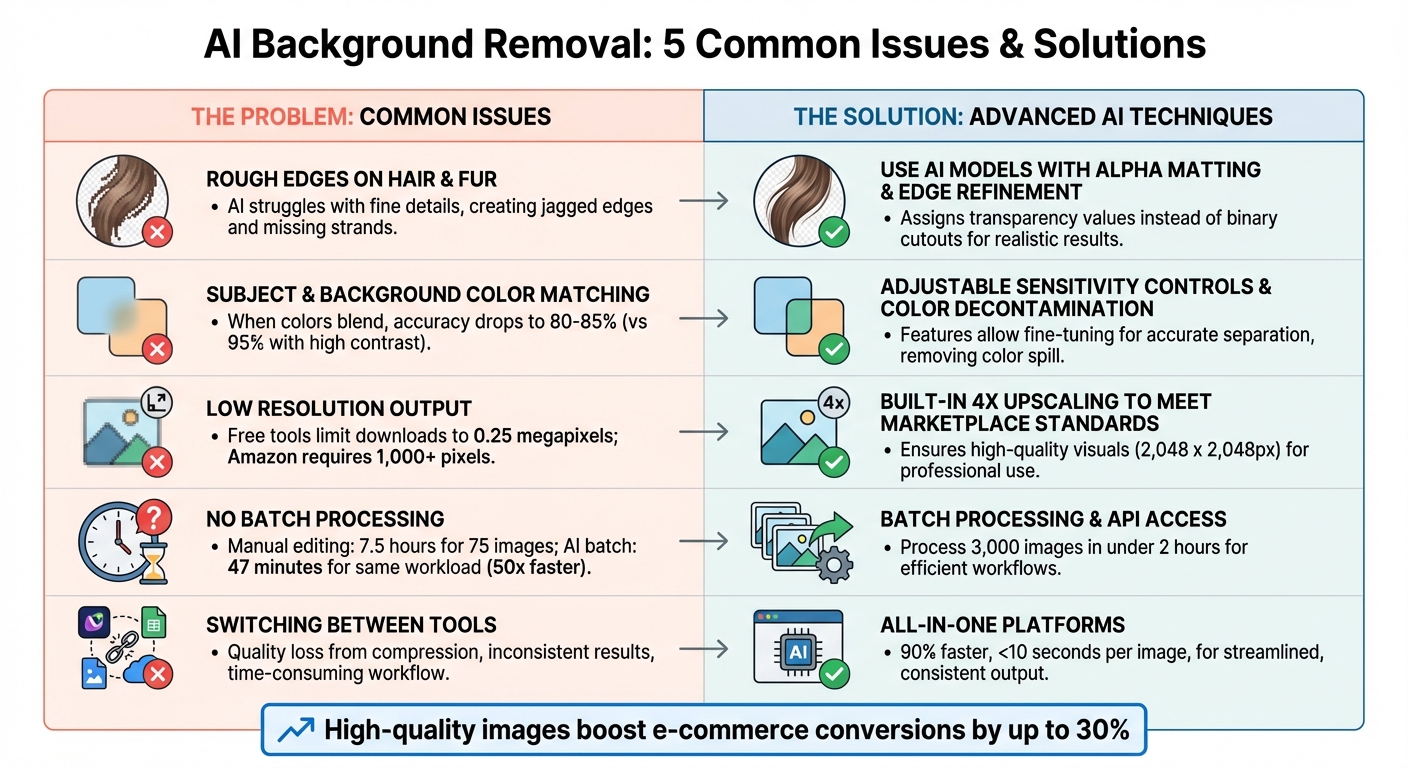
Here’s a quick look at the most common problems users face and how to fix them:
- Rough Edges on Hair and Fur: AI struggles with fine details like hair strands, leading to jagged edges or missing parts. Use tools with advanced edge refinement and alpha matting for smoother results.
- Subject and Background Color Matching: When colors blend, AI often misclassifies pixels, causing false edges or artifacts. Adjustable sensitivity and color correction features can help.
- Low-Resolution Output: Many tools sacrifice image quality for speed, making them unsuitable for professional use. Opt for platforms with built-in upscaling to maintain sharpness.
- No Batch Processing: Without batch capabilities, editing large catalogs is time-consuming. Choose tools with batch options and API integration to handle thousands of images efficiently.
- Switching Between Tools: Using multiple tools for different tasks slows workflows and can degrade image quality. All-in-one platforms simplify the process and ensure consistent results.
Why it matters: Clean, high-quality images can boost e-commerce conversions by up to 30%. Choosing the right tool not only saves time but also ensures your visuals meet marketplace standards and attract more buyers.
 Background Removalixelpanda.ai/free-tools/background-remover”>Background Removal Issues and Solutions” />
5 Common AI Background Removal Issues and Solutions
How to Fix Common AI Challenges like Plastic Skin, Distorted Faces & Background Artifacts
1. Rough Edges on Hair and Fur
Hair and fur often blur the lines between subject and background, creating a tricky area for AI to process. These transition zones are a blend of foreground and background colors, partial transparency, and scattered light, which makes defining sharp edges a real challenge for most AI tools.
When there’s low contrast between the subject and the background, the AI struggles even more. It has to guess where the boundaries are, and this often leads to jagged edges or missing strands of hair. Instead of achieving a smooth fade, the AI creates stair-step outlines because it makes binary decisions for each pixel. This issue becomes especially noticeable in low-contrast images.
Another common problem is the “halo” effect, where background colors reflect onto hair strands. If the AI lacks advanced color correction, this residual hue remains, requiring manual edits to fix. Some AI models even skip over thin strands of hair entirely to avoid these artifacts, which can leave the final result looking incomplete.
Solution: Use AI Models Built for Fine Details
To tackle these challenges, you’ll need tools designed for precision. Advanced AI techniques, like alpha matting, are key. Unlike binary cutouts that decide whether to “keep or remove” a pixel, alpha matting assigns each pixel a transparency value. As DEV Community explains:
Hair and fur require alpha masking, not hard cutouts. Instead of deciding ‘keep or remove,’ AI assigns each pixel a transparency value.
This approach ensures individual strands blend naturally, avoiding the abrupt, artificial look of hard edges.
For the best results, look for tools with specialized edge refinement and built-in color correction. For instance, PixelPanda‘s background removal tool is specifically trained to handle intricate textures like hair, fur, and even lace. It not only captures fine details but also automatically fixes color spill, reducing the need for manual adjustments. To maximize accuracy, upload high-resolution images with strong lighting and contrast – higher pixel density gives the AI more data to work with.
2. Problems When Subject and Background Colors Match
Another challenge in image processing occurs when the subject’s color blends too closely with the background. AI relies on numerical pixel values, color gradients, and texture patterns to distinguish objects from their surroundings. When the colors of the subject and background are too similar – like a white shirt against a white wall – the AI struggles to define clear boundaries. This happens because AI models assign a probability score to each pixel. High scores, like 0.98, indicate strong confidence that a pixel belongs to the subject, while low scores, around 0.02, suggest it’s part of the background. When colors match, many pixels end up in a “gray zone” with scores around 0.50, leaving the software uncertain about their classification.
This uncertainty often leads to errors. You might notice false edges, where parts of the subject are mistakenly removed, or sections of the background are left behind. Common artifacts include jagged outlines or halos around the subject. Studio images with strong contrast can achieve over 95% edge accuracy, but in lifestyle photos where colors blend, accuracy can drop to 80–85%. Problematic scenarios include dark hair in dimly lit settings, white objects on white backgrounds, or transparent materials like glass.
Solution: Adjustable Sensitivity Controls
To address this issue, use tools with adjustable detection sensitivity. Advanced platforms employ probability maps and sensitivity adjustments to handle areas where colors overlap. Techniques like alpha matting replace binary classifications with gradual transparency values, creating smoother transitions in blended regions. Additionally, color decontamination (or despill) removes background color reflections that can affect the subject’s edges.
PixelPanda (https://pixelpanda.ai) offers customizable AI models designed for these challenges. The platform combines adjustable sensitivity with built-in color correction, along with manual refinement tools for the 5–10% of cases where human input is necessary. For best results, always work with high-resolution images – at least 1080p – to prevent foreground and background pixels from merging together.
3. Low Resolution After Background Removal
A common drawback of many AI background removal tools is the trade-off between speed and image quality. To process images faster, these tools often downscale the resolution or rely on basic edge detection methods. The result? Images that may look fine as thumbnails but lose sharpness and clarity when zoomed in or used for professional purposes. Free versions of these tools make matters worse by limiting high-resolution downloads to paid users. For instance, some platforms only allow free accounts to download preview files as small as 0.25 megapixels. While this might work for casual social media posts, it’s far from sufficient for professional e-commerce photography.
To put this into perspective, Amazon requires images to have at least 1,000 pixels on the longest side to enable its zoom feature, with a recommended range of 1,600 to 3,000 pixels for optimal detail. Similarly, Shopify themes perform best with square images sized at 2,048 x 2,048 pixels. When exported files fall short of these specifications, users are forced to upscale images manually – a process that not only adds extra steps but also risks degrading quality further. This can obscure fine details like fabric textures, jewelry engravings, stitching patterns, or even delicate hair strands. AI tools often struggle to cleanly separate foreground and background pixels, leading to jagged edges and loss of detail. Such issues can have a direct impact on sales, as high-quality product images have been shown to boost conversion rates by up to 30%. To address these challenges, a built-in upscaling solution is crucial.
Solution: Built-In Upscaling Features
Opt for tools that integrate background removal with upscaling capabilities. This approach eliminates the hassle of exporting low-resolution cutouts and running them through separate upscaling software, which can introduce compression artifacts and further degrade the image.
For example, PixelPanda (https://pixelpanda.ai) includes 4x upscaling as part of its background removal process. This means you can take a standard smartphone photo and turn it into a high-resolution asset, suitable for everything from trade show banners to high-zoom product galleries. Their plans start at $39 per month for 7,000 images, with upscaling included across all tiers. PixelPanda acts as an all-in-one solution, combining background removal, upscaling, and even generative fill into a single API-driven system. To ensure the best results, always review your final images at 200–300% zoom to spot and correct any halos or gray fringing before uploading them to online marketplaces.
sbb-itb-76ad1b7
4. No Batch Processing for Multiple Images
When managing large product catalogs, efficiency becomes a top priority. Editing a single image manually can take 4–6 minutes. If you’re working on 75 images a day, that adds up to around 7.5 hours of manual labor. Now imagine a catalog with 850 products – that’s a staggering 23 hours per week. Compare that to AI batch tools, which can process the same workload in just 47 minutes.
The problem becomes even more daunting at scale. E-commerce businesses handle over 2.8 billion product images annually. In this context, manual editing is, quite frankly, unsustainable. Hiring virtual assistants or in-house staff to remove backgrounds individually can cost between $2,250 and $3,360 per month. On the other hand, AI-powered tools are up to 50 times faster, with processing speeds of just 2–5 seconds per image. Modern batch tools can process 3,000 images in under two hours – a task that used to take an entire workweek.
“Batch processing means uploading 500 images at once and getting them back in minutes – not days.” – Removedo Team
Speed isn’t the only benefit. Batch processing also ensures consistent quality. Manual edits are prone to inconsistencies, especially as editors fatigue over time. AI, however, applies the same settings uniformly across all images. With manual workflows, small mistakes can easily snowball across a large batch, and fixing them later often takes more time than setting up a single batch process correctly from the start.
Solution: Batch Processing and API Access
To streamline your workflow, batch processing and API integration are game-changers. For large-scale image processing, categorize your images – whether they feature people, shiny products, or fabric – and apply tailored presets for better edge handling. Always export batch-processed images as PNG files to maintain transparency; JPEGs don’t support transparent backgrounds. Instead of reviewing every single image, check a random 10% sample to ensure consistent results across the batch.
For example, PixelPanda (https://pixelpanda.ai) offers flexible credit-based plans starting at $39 per month, covering 7,000 images, with batch processing and API access included across all tiers. For sellers processing 5,000+ images, integrating a REST API can automate the entire workflow directly into your product upload system. This approach allows you to update entire catalogs without manual intervention, consolidating background removal and upscaling into a single process. The result? You could cut editing costs by up to 94%, freeing your team to focus on more strategic tasks.
5. Switching Between Multiple Tools
While batch processing can streamline some aspects of editing, juggling multiple tools for different tasks can create a whole new set of challenges.
Jumping between apps to handle tasks like background removal, upscaling, and lighting adjustments not only interrupts your workflow but also eats up valuable time. On top of that, every time an image is exported and re-imported, compression can chip away at its quality. For e-commerce teams managing large product catalogs, this disjointed process can cause significant bottlenecks.
When tasks like background removal and relighting are handled in separate tools, the results can lack cohesion. You might end up with images where lighting and color tones feel mismatched, edges look uneven, shadows appear inconsistent, and branding feels fragmented. Frequent compression during these back-and-forth edits can even give images an unnatural, “plastic” look.
Such manual workflows are often described as slow, inconsistent, and downright exhausting. And for businesses relying on clear, polished images to drive sales, this scattered approach can make it harder to achieve the kind of visuals that boost e-commerce conversions by as much as 30%.
Solution: All-in-One Platforms
The fix? Streamline everything with an all-in-one platform. Tools like PixelPanda combine background removal, upscaling, AI-generated product photos, and a full suite of editing features – all in one place. This eliminates the need to constantly export and import files between different apps, ensuring consistent quality across all your images. It’s a seamless solution that pairs perfectly with batch processing for a smoother editing experience.
These platforms can slash manual editing time by up to 90%, with individual images taking less than 10 seconds to process. AI-powered tools can cut overall editing time by nearly 80%. Take Ashley Peek, for example – a top seller on Poshmark and eBay. In November 2024, she used an all-in-one platform’s AI Background Remover and Batch Mode to edit about 250 product images weekly on her phone. By centralizing her workflow, she saw her monthly income skyrocket to $20,000, a 45× increase in sales revenue.
Additionally, features like integrated shadow tools ensure subjects look naturally grounded after background removal, while built-in upscaling options (2× or 4× during export) help maintain sharp edges without needing a separate tool.
Conclusion
AI-powered background removal has become a game-changer for e-commerce and marketing, but it’s not without its challenges. Issues like inconsistent quality and slow workflows can hold you back. The upside? These problems have practical solutions – if you pick the right platform.
Let’s talk about why this matters. 90% of shoppers on e-commerce platforms judge products based on image quality when deciding to buy. High-quality, clean product photos can even increase conversions by 30%. Meeting marketplace standards, like Amazon’s pure white background requirement, isn’t just a technicality – it’s a direct path to better sales. Consistency across your product catalog builds trust, saves time, and improves overall performance.
All-in-one platforms are stepping up to tackle these issues head-on. Take PixelPanda (https://pixelpanda.ai), for example. It combines background removal, upscaling, AI-generated product photos, and advanced editing tools into a single, streamlined workflow. That means no more bouncing between tools, no quality loss, and no inconsistent edges. Even better, it cuts manual editing time by up to 90%, processing images in seconds instead of the 10–20 minutes traditional editing takes. This kind of efficiency doesn’t just save time – it boosts your sales by ensuring every image is polished and professional.
Cost is another area where AI tools shine. While manual editing services can cost $5 to $25 per image, AI tools typically range from $0.10 to $0.50 per image. The savings add up fast. Some businesses report saving up to 50,000 hours annually by automating background removal. AI tools are also 50× faster than manual editing. Consider the story of a Poshmark and eBay seller who saw a big jump in revenue after switching to an all-in-one platform with batch processing capabilities. It’s proof that the right tools can transform your workflow – and your bottom line.
Whether you’re working with a small batch of 50 images or managing thousands for a seasonal launch, solving these common challenges with a robust platform can turn background removal from a hassle into a competitive edge. The technology is here to handle the details, deliver professional results, and scale with your business. By choosing the right tools, you’re not just keeping up – you’re setting yourself apart, turning your image editing process into a strategic advantage that drives real results.
FAQs
How do AI tools handle fine details like hair and fur during background removal?
AI tools rely on advanced algorithms to tackle challenging details like hair and fur with greater precision. These algorithms specialize in edge refinement, minimizing problems like color spill or contamination along fine edges. By carefully analyzing textures and transparency in these areas, AI produces smoother, more accurate cutouts that appear both natural and polished.
To achieve optimal results, use images with proper lighting and contrast. This makes it easier for the AI to detect and separate intricate details effectively.
What should I look for in an AI tool to fix color mismatches between the subject and background?
When choosing an AI tool to tackle color mismatches, look for features that stand out. For instance, advanced AI algorithms are key – they can analyze and adjust color tones to create smooth, natural blending. Tools that handle high-contrast image processing effectively and offer customizable settings for precise color adjustments are particularly useful. These features help ensure that the subject and background are perfectly balanced, giving your images a polished and professional look.
Why is image upscaling a key feature in AI background removal tools?
When working with AI background removal tools, image upscaling plays a key role in maintaining image quality during resizing. Without it, enlarging an image often results in blurry edges and a noticeable loss of detail, which can detract from a polished, professional look.
By incorporating upscaling, these tools can refine details and preserve sharpness, so resized images remain clear and visually appealing. This feature is especially valuable for projects like product photos or marketing materials, where high-quality visuals make all the difference.