Ah, the dreaded 403 Forbidden error. If you've spent any time on the web, you've probably slammed into this digital brick wall. It's the server's way of looking you dead in the eye and saying, "Nope, not for you."
Unlike its cousin, the 404 Not Found, where the server is just shrugging its shoulders because the page is gone, a 403 error is far more personal. The server knows exactly what you want. It sees your request loud and clear. It's just actively refusing to give it to you.
Think of it like knocking on a door you know is there, only to have someone on the other side slide the peephole shut. Infuriating, right?
So, What Does a 403 Error Really Mean?
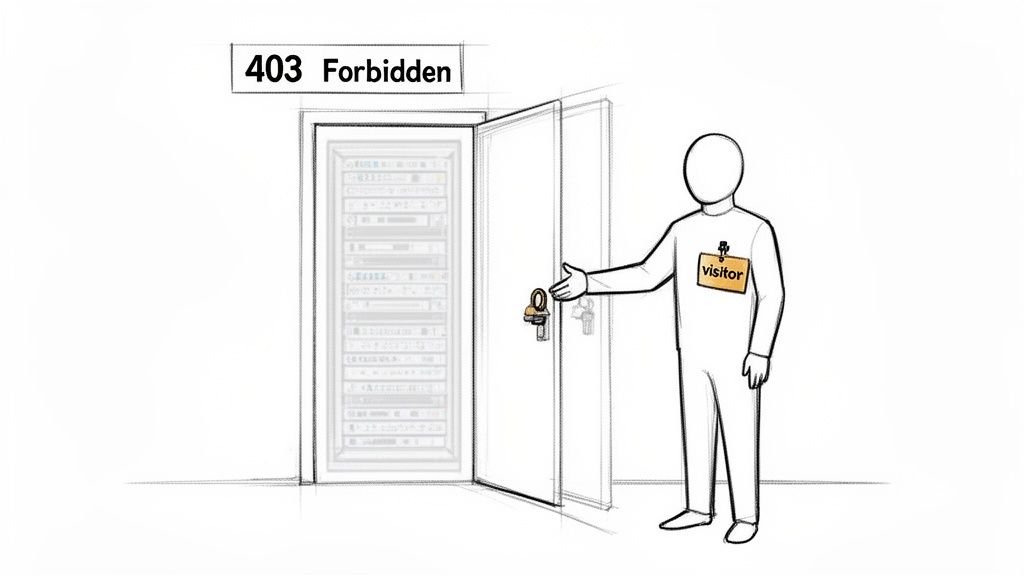
At its core, a 403 Forbidden error is a permissions problem. The server is up and running, your internet connection is fine, and the resource you're asking for definitely exists. The issue is that you—or rather, your browser, app, or API client—don't have the necessary credentials to access it.
This is a deliberate security measure. The server is doing its job by enforcing a specific access rule that your request has violated. It's not a bug; it's a feature… just a really annoying one when you're on the wrong side of it.
Don't Confuse It With Other HTTP Errors
It's tempting to lump all web errors into one big "the internet is broken" bucket, but understanding the nuances is the first step to a quick fix. A 403 is all about authorization—the server knows who you are but has decided you don't have the right clearance.
This is fundamentally different from an authentication issue (like a 401 Unauthorized), where the server doesn't know who you are in the first place. With a 403, simply trying to log in again won't help. The problem lies deeper, in the permissions granted to your account or the way your request is structured. As experts at Scrapfly explain in their blog, repeating the same request without changes is just going to get you the same result.
The core message of a 403 is clear: "I know what you're asking for, and my answer is no." This shifts the focus from "Is the server broken?" to "Why am I being blocked?"
To make this crystal clear, here’s a quick-glance comparison table to help you instantly tell a 403 error apart from other common HTTP status codes you might run into.
403 Forbidden vs Other Common HTTP Errors
| HTTP Status Code | What It Means | Simple Analogy |
|---|---|---|
| 403 Forbidden | The server understood the request but refuses to grant access. | You have a ticket, but the bouncer says you're not on the VIP list. |
| 401 Unauthorized | You need to authenticate to get the requested response. | The bouncer asks for your ID, but you don't have one. |
| 404 Not Found | The server can't find the requested resource. | You show up to the club, but the building isn't even there. |
| 500 Internal Server Error | The server encountered an unexpected condition. | The club's power went out, and everything is chaos. |
Understanding these distinctions is your secret weapon. It immediately tells you where to start looking for the problem—is it your credentials, the URL, or something wrong on the server's end?
Your Roadmap to a Fix
Whether you're a developer wrestling with a finicky API key, a site admin scratching your head over file permissions, or just a user trying to get to a webpage, you're in the right place. This guide will cut through the technical jargon and give you real, actionable steps to diagnose and squash that 403 error for good. Let's get that door open.
Pinpointing the Usual Suspects Behind 403 Errors
When a 403 Forbidden error crashes your party, it's not a random glitch. It’s like a bouncer with a list, and for some specific reason, you’re not on it. Getting past that velvet rope starts with figuring out exactly which rule you’ve broken.
Let's walk through the most common culprits. Think of this as a diagnostic checklist to help you zero in on the problem and get things working again.
Wrong File or Directory Permissions
This is the all-time classic, the number one cause I see on self-hosted websites. Seriously, start here. Every file and folder on your server has permissions dictating who can read, write, or execute it. If they're too restrictive, the server slams the door shut.
A classic example is a webpage that needs to be publicly readable, but its permissions are accidentally set to private. One wrong chmod command on a folder can make every single file inside it completely inaccessible, triggering a wave of 403s.
Overzealous Security Plugins or Firewalls
You installed a security plugin or a Web Application Firewall (WAF) to keep the bad guys out. The irony? Sometimes, they get a little too enthusiastic and end up blocking you, the legitimate owner.
These tools use complex rules to spot suspicious behavior. A few failed login attempts, a weird-looking query, or even uploading a file it doesn't like can get your IP address temporarily—or even permanently—blacklisted. It's a frustrating case of friendly fire, and it happens more often than you'd think.
Pro Tip: If a 403 pops up out of nowhere, try temporarily disabling your security plugins. It's often the fastest way to see if they're the cause. Just don't forget to turn them back on!
Geoblocking and Regional Restrictions
Ever tried to watch a video service abroad only to get hit with the "not available in your country" message? That's geoblocking, and it’s a frequent source of 403 errors. Servers can be configured to deny access from specific countries for licensing, security, or regulatory reasons.
And it’s not just for streaming sites. A study testing top domains across 177 countries found a median of three domains were inaccessible per country due to these blocks. For web applications, a great framework for understanding critical security flaws that lead to access issues is the OWASP Top 10.
API Key and Authentication Headaches
For all the developers out there, APIs are a prime hunting ground for 403s. When you're working with services that require authentication—like our own PixelPanda API—a 403 error is almost always tied to the key.
Here are the mistakes I see all the time:
- Invalid or Expired API Key: The key might have a typo, have been revoked by the service, or simply expired. It happens.
- Incorrect Permission Scopes: Your API key might be perfectly valid but lacks the specific permissions (or "scopes") for the action you're trying to perform. Think of a "read-only" key trying to upload a new image—it's a guaranteed denial.
- Wrong Environment: Most APIs have a sandbox for testing and a separate production environment for live data. Using a sandbox key on the production endpoint (or vice versa) is a surefire way to get a 403.
Your Hands-On Troubleshooting Toolkit
Alright, let's roll up our sleeves and play detective. A 403 Forbidden error isn't some unsolvable mystery; it's a server leaving a trail of breadcrumbs. You just need to know where to look. We’ll kick things off with the easy stuff before we bring out the heavy-duty diagnostic gear.
First up, the classic "turn it off and on again" of web troubleshooting: clear your browser's cache and cookies. It sounds almost too simple, but you'd be surprised how often a site update clashes with old data your browser is clinging to, creating a permission conflict. It's a long shot, sure, but it takes ten seconds and might save you an hour of pain.
If that didn't do the trick, it’s time to go a level deeper.
Peeking Under the Hood with Browser Dev Tools
Every modern browser comes with a built-in suite of developer tools, and for debugging HTTP errors, they're your absolute best friend. Pop open the "Network" tab, refresh the page, and you can see the exact request your browser sent and the raw, unfiltered response it got back.
You'll probably see the failing request highlighted in red. Click on it. This opens up a world of information, showing you every detail about the interaction. Are you missing a required Authorization header in the request? Is a cookie not being sent? This is where you'll find out. For a truly forensic look, you can learn how to open HAR files to analyze the entire conversation between your browser and the server.
Bypassing the Browser with Curl
Sometimes, the browser itself is the problem, adding a layer of complexity with extensions, caching, or other quirks. To get a clean look at what the server is really telling you, the command-line tool curl is indispensable. It lets you send a direct request to the server, cutting out the middleman entirely.
A simple command, for instance, can show you just the headers from the server's response:curl -I https://example.com/some-protected-resource
This sends a HEAD request, which is like asking, "Just give me the metadata, not the whole page." The server might send back a clue in the headers, like a WWW-Authenticate field or a custom server message that spells out exactly why you were denied.
A raw
curlresponse is the server’s unfiltered truth. If you get a 403 here, you know the problem is definitively on the server, not something funky happening in your browser.
When you're trying to figure out where to even start, a good mental map helps. This flowchart can guide you through the decision-making process, from common permission problems to more obscure API key issues.
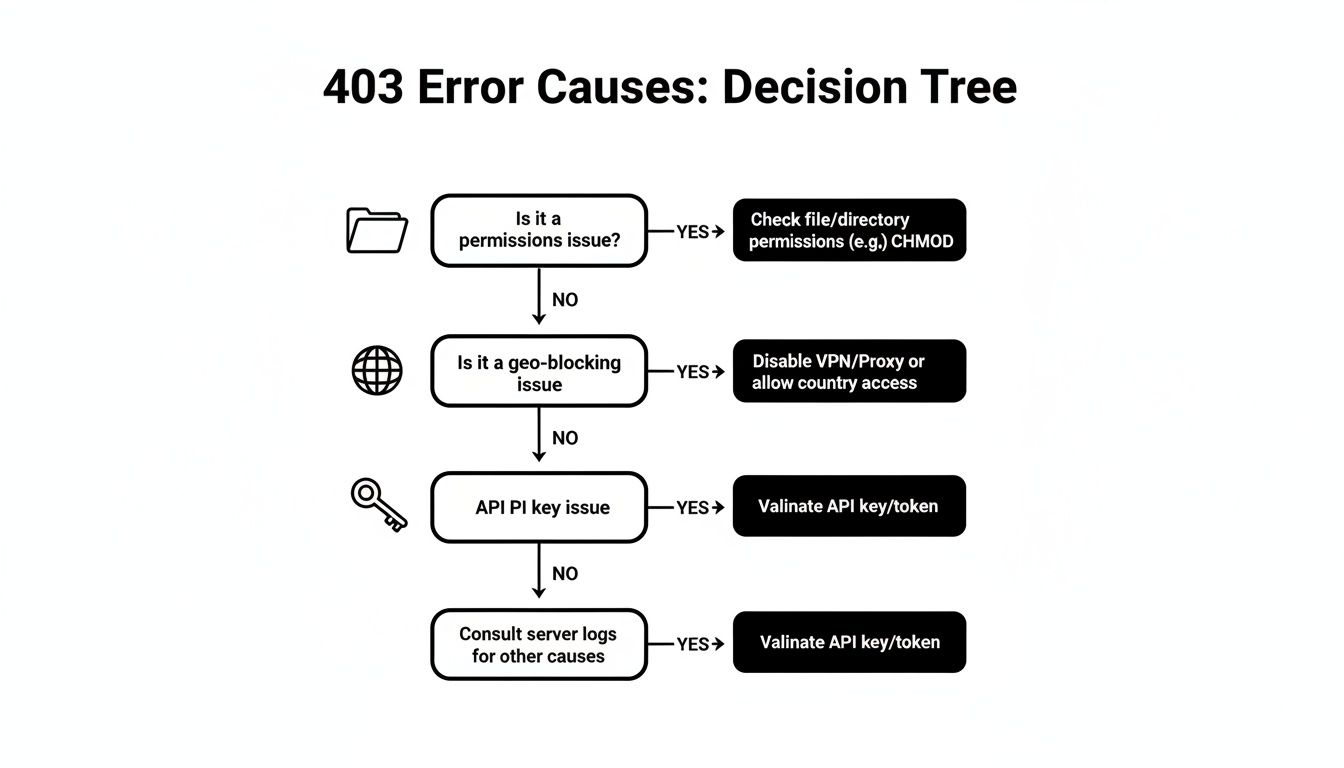
Think of it as a cheat sheet for your troubleshooting, helping you check the most likely culprits first before you dive down a rabbit hole.
Digging into Server Logs
If you have access to the server itself, the logs are a goldmine. This is the server's diary, where it writes down exactly what happened and, more importantly, why it denied a request. The location of these logs will depend on your setup.
- On Apache servers: You'll want to check the
error_logfile, which usually lives in a directory like/var/log/apache2/. - On Nginx servers: The default error log is typically found at
/var/log/nginx/error.log.
Find the log entries that match the timestamp of your failed request. More often than not, you'll find a message pointing to the exact configuration rule or file permission that triggered the 403. If you get stuck deciphering server-side issues, you can always find more in-depth guides over at our help section: https://pixelpanda.ai/help
Getting Your Hands Dirty on the Server
So, you’ve done the sleuthing and all signs point back to your own server. This is where the real fun begins. Don't be intimidated; most server-side 403 errors come down to a handful of classic, and thankfully fixable, misconfigurations. Let's roll up our sleeves.
The Classic Culprit: File Permissions
Nine times out of ten, a 403 error is just a simple case of bad file permissions. Think of it like a bouncer at a club who wasn't given the right guest list—they're just doing their job, but nobody's getting in. Web servers are incredibly picky about this stuff for security reasons.
There’s a magic number combo that works for almost every web hosting setup. It’s the sweet spot between "secure" and "actually works."
- Files need to be
644: This lets the owner read and write, but everyone else can only read. Perfect for HTML, CSS, and image files. - Directories need to be
755: This lets the owner do everything, while others can only browse through them. Without this, the server can't even look inside a folder to find yourindex.htmlfile.
You can usually fix this with a quick chmod command if you have SSH access. Running a recursive command to set these permissions across your entire website directory can solve a shocking number of 403 mysteries in one go.
Digging into Your Server's Rulebook (.htaccess and Friends)
If the permissions look good, it’s time to check the server’s rulebook. On Apache servers, this is the mighty .htaccess file. This little text file is deceptively powerful; it can handle redirects, block bad bots, and unfortunately, lock you out of your own site with a single typo.
Hunt for any directives like Deny from or Require all denied. These are the digital "Keep Out" signs. It’s surprisingly easy to write a rule that’s a bit too greedy and ends up blocking legitimate visitors (or even yourself). Try commenting out any suspicious-looking rules one by one and see if the 403 vanishes.
A Word of Caution: The
.htaccessfile is a loaded weapon. One wrong character can bring down your entire site. Always, always make a backup copy before you start tinkering.
This process of elimination is your best friend here. Isolate the cause, test your fix, and you'll get to the bottom of it without causing more chaos.
Taming Overzealous Security Rules
Your firewall and security modules, like the popular ModSecurity, are your server’s bodyguards. They’re great at stopping trouble, but sometimes they get a little overenthusiastic and start bouncing legitimate users. This can trigger some of the most frustrating 403 access forbidden errors you'll encounter.
If you think your digital security is being too aggressive, dive into its logs. Look for entries that match your IP address around the time the error occurred. You’ll often find a specific rule ID that was triggered, causing the block.
The fix usually involves whitelisting your IP or, more surgically, disabling that specific rule for the part of your site causing the false positive. For instance, if ModSecurity thinks a normal form submission looks like a SQL injection attack, you might need to adjust that one rule. It's a scalpel, not a sledgehammer—you fix the 403 without tearing down your defenses.
Untangling 403s from APIs and CDNs

Sometimes, that frustrating "403 Forbidden" message isn't even coming from your own server. When you bring third-party APIs or Content Delivery Networks (CDNs) into the mix, you’re adding new layers of security—and new potential points of failure. These external services have their own bouncers at the door, and if you don't know the rules, you're not getting in.
For anyone who's ever wrestled with an API, seeing a 403 is a familiar kind of pain. It almost always points a big, flashing arrow at your authentication. The first thing to check is embarrassingly simple but surprisingly common: did you fat-finger the API key? A single typo is all it takes to get shut down.
But if it’s not a simple typo, the problem usually gets a bit more nuanced. It often comes down to the permissions—or scopes—that your key has been granted.
The Classic API Key and Scope Mismatch
Let's say you're using the PixelPanda API to work some magic on your images. Your API key might be perfectly valid, but if it only has "read-only" permissions, trying to upload a new file for processing is going to get you a swift 403 rejection. It's like having a key to the front door of the building but not to the one office you actually need to be in.
Another trap I’ve seen people fall into is mixing up their development and production environments. Most APIs give you a safe, sandboxed playground for testing and a completely separate environment for your live application. If you try to use a test key on a live endpoint (or vice versa), you’re practically asking for a 403. You can dive into our developer documentation to see how these environments are structured and make sure you’re using the right credentials for the job.
When CDNs and Geoblocking Get in the Way
Content Delivery Networks like Cloudflare or Akamai are lifesavers for performance and security, but their rulebooks can be very strict. A CDN can throw a 403 error for reasons that have absolutely nothing to do with your server configuration.
Here are a few common culprits:
- Overzealous Bot Detection: Their systems might mistake your perfectly legitimate traffic or web scraper for a malicious bot and slam the door shut.
- WAF Rules: A CDN’s Web Application Firewall (WAF) can flag and block requests it thinks are suspicious, even if your own server would have happily accepted them.
- Geoblocking: The CDN might be set up to deny access to visitors from specific countries or entire regions.
Pro Tip: If you're blocked by a site that uses a CDN, hunt for a "Ray ID" or a similar tracking code in the error message. Giving that ID to the site owner or the CDN's support team is the fastest way for them to pinpoint the exact rule that blocked you.
And don't underestimate the impact of geoblocking. A fascinating study on web censorship found that trying to access domains from a server in Iran resulted in 707 HTTP 403 Forbidden responses. For comparison, the same tests run from a U.S.-based server only triggered 69 errors. That's a huge difference, and it really shows how aggressively CDNs can enforce these regional blocks.
Still Stumped by a 403 Forbidden Error? Let's Clear Things Up.
Even after running through the usual suspects, some 403 scenarios can feel like a real mystery. Let's tackle a few of the head-scratchers that I see pop up all the time.
Can I Fix a 403 Error on a Site I Don't Own?
In short, probably not. Think of a 403 as a bouncer at a club who has your name on a "do not enter" list. It’s a deliberate decision made by the server, and as a visitor, you can’t just talk your way in.
Your best first step is to rule out any issues on your side. Clear your browser cache and cookies, try a different browser, and maybe disable your VPN for a moment—its IP address might be on a blocklist. If you’re still getting shut out, the only real move left is to contact the site's owner. Sometimes their security rules are a little too enthusiastic and accidentally block legitimate users.
At the end of the day, a 403 is a server-side problem. As a visitor, your power is limited to making a clean request and, if that doesn't work, letting them know they've accidentally locked the door.
Why Does My API Key Keep Getting a 403 Error?
Ah, the classic developer's nightmare. When an API throws a 403 at you, it’s almost always an issue with authentication or, more specifically, authorization. Your API key might be valid, but it doesn't have the right permissions—often called scopes—to do what you're asking.
It usually boils down to one of these common trip-ups:
- Wrong Playground: You're trying to use a sandbox or test key on the live production API.
- Not Enough Clearance: Your key has permission to read data, but you're trying to write or delete something.
- Access Denied: The API provider simply revoked or disabled the key.
Imagine you have an API key for a trial service that lets you view existing images. If you try to use that same key to create a new one, you'll likely get a 403. The server sees your key, recognizes it, but knows it isn't allowed to perform that action. Time to check the permissions on that key.
Is a 403 Error Bad for SEO?
You bet it is. If Googlebot keeps knocking on the door of an important page and repeatedly gets a 403 access forbidden error, it will eventually give up and de-index that page. Google's logic is simple: if the content is intentionally blocked, there's no point in showing it in search results.
A temporary 403 during a short maintenance window is no big deal. But a persistent one is a giant "Keep Out" sign for search engines. We cover how different site errors can affect your search rankings in our detailed FAQ section.
Ready to automate your image workflows and leave frustrating manual edits behind? PixelPanda offers a powerful API that handles background removalixelpanda.ai/free-tools/background-remover”>background removal, upscalinghttps://pixelpanda.ai/free-tools/enhance-photo”>upscaling, and more in seconds. Start your free trial and see it in action.